Add the chat to your website
· 3 steps · 3 min read
The same assistant that answers on WhatsApp can answer visitors on your website. It uses the same knowledge, takes the same bookings and orders, and the chats land in Conversations.
Step 1
Choose how it looks
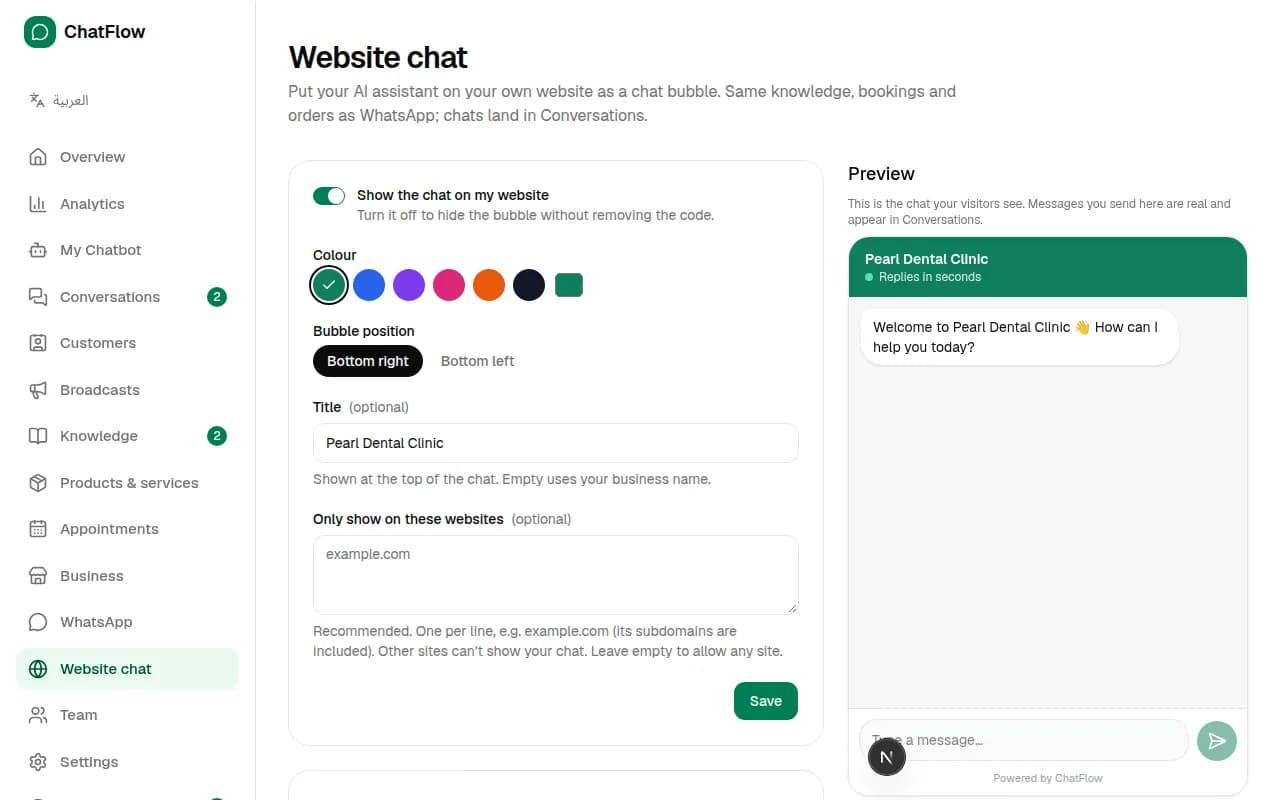
In the menu, choose Website chat. Turn on Show the chat on my website, pick a colour and the bubble position, and optionally a title. The preview on the right is a real chat: try it.
Step 2
Paste the code into your website
Under Add it to your website, choose Copy code and paste the line into your site just before </body>. On Wix, Squarespace, Shopify or WordPress, use a "Custom code" or HTML block. For safety, list your website under Only show on these websites.
Step 3
Answer website chats in Conversations
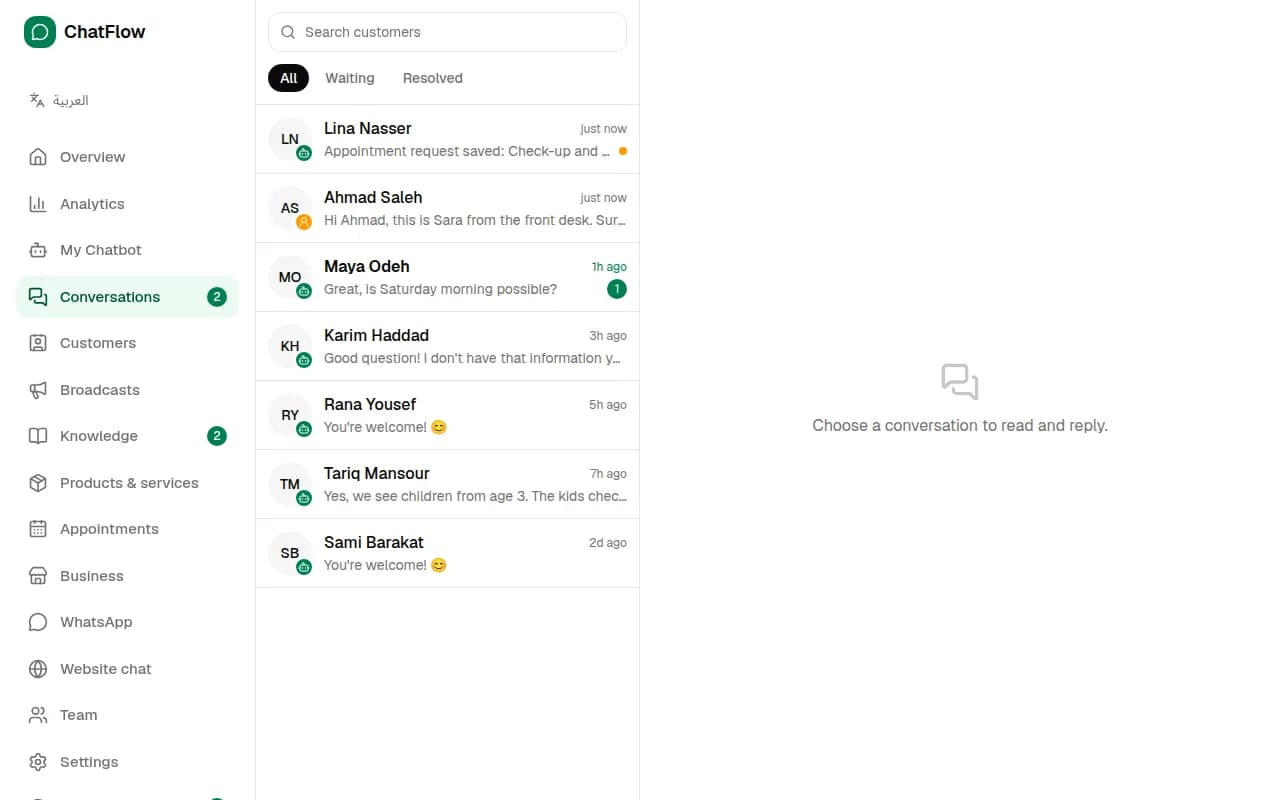
Website chats appear in Conversations next to WhatsApp chats, marked Website. You can reply, take over and resolve them in the same way.
Still stuck?
Open a ticket from Support in your dashboard, or write to us. We usually reply within one working day.
Ready to try it?
Create your AI WhatsApp chatbot in minutes. Free plan, no credit card.
Try Chatbot Free