Manage orders and payments
· 4 steps · 4 min read
When Take orders is turned on, your chatbot writes down items and quantities, asks for delivery or pickup, and saves the order for you.
Step 1
See new orders
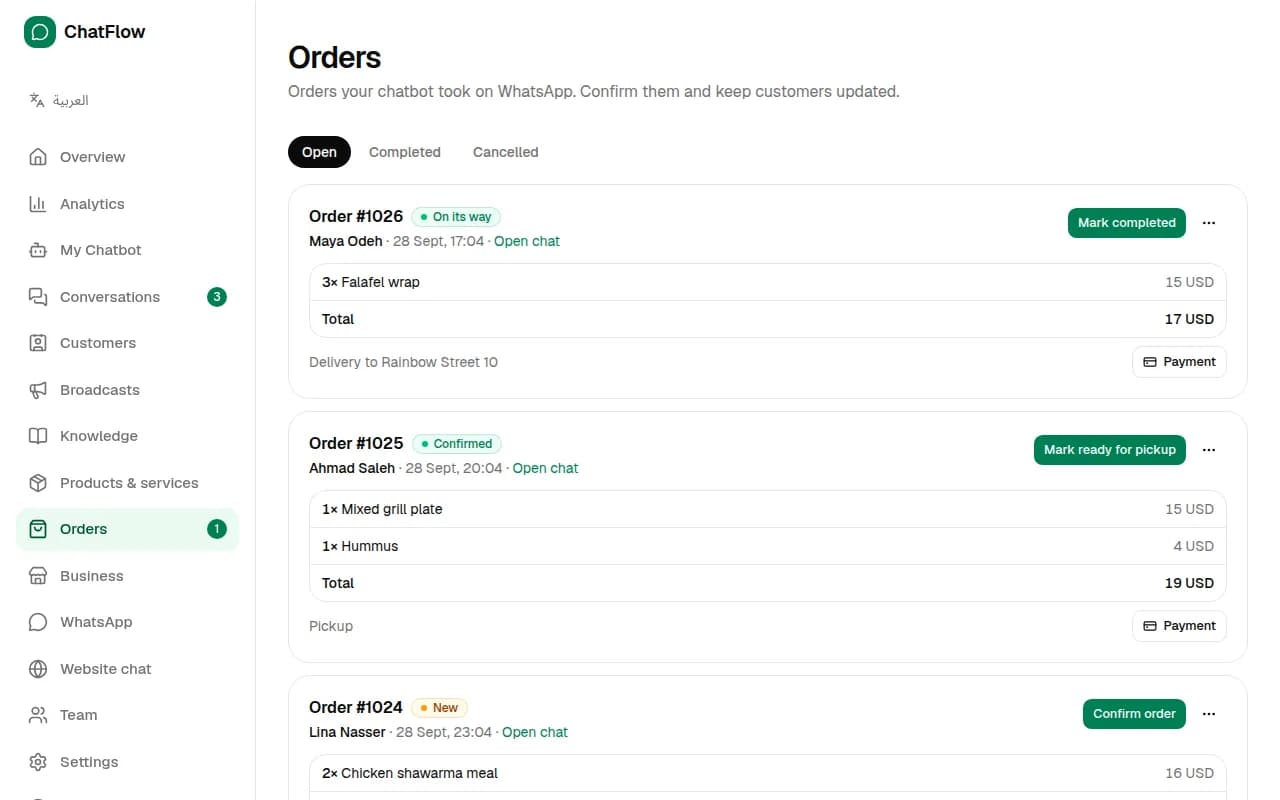
In the menu, choose Orders. New orders from the chatbot are marked New, with each item, the total and the delivery address or pickup. A badge in the menu shows how many are waiting.
Step 2
Move each order along
Use the green button on each order: Confirm order, then Mark on its way (or Mark ready for pickup), then Mark completed. The customer gets a WhatsApp update at each step. Choose ⋯ to cancel an order.
Step 3
Send a payment link
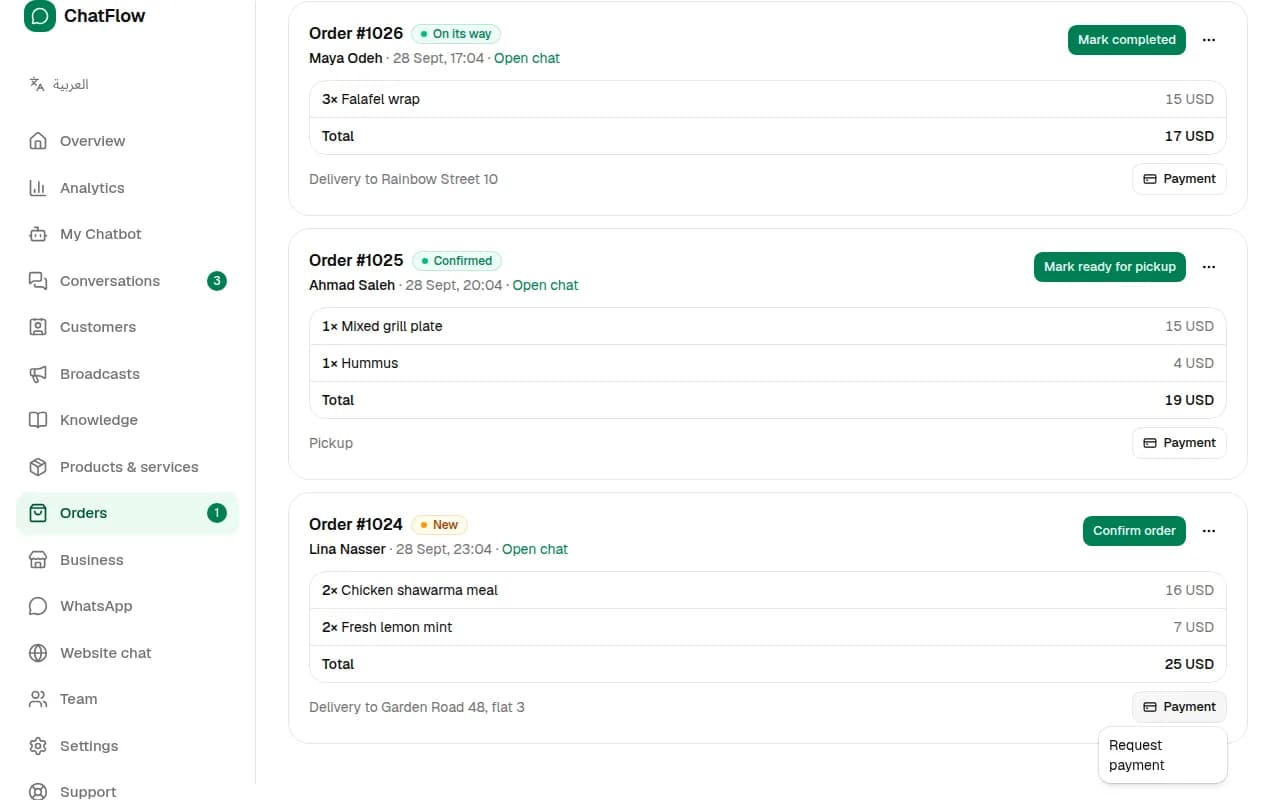
Choose Payment → Request payment to send the customer a link to pay the order total. When they've paid, mark it paid.
Step 4
Set up how customers pay
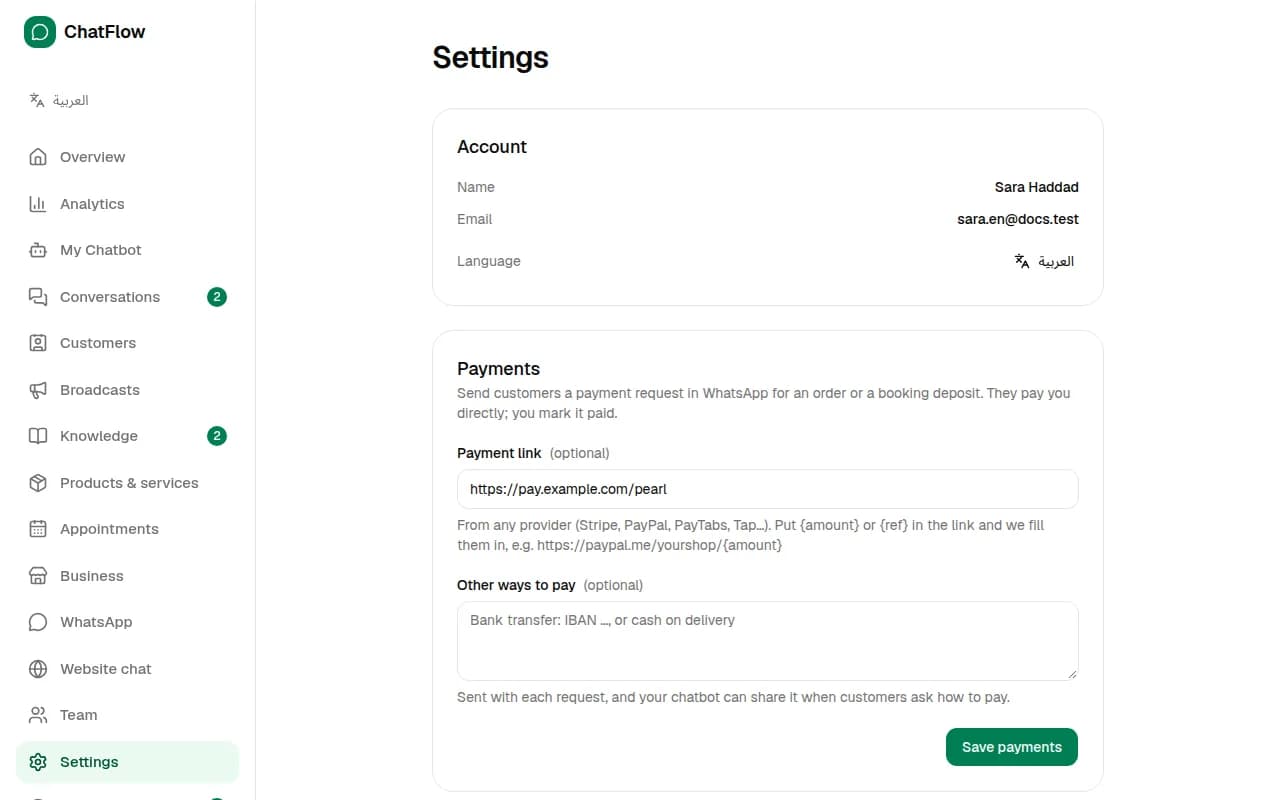
In Settings → Payments, add your payment link from any provider (Stripe, PayPal and others) and other ways to pay, such as bank transfer or cash on delivery. Customers pay you directly; ChatFlow never holds your money.
Still stuck?
Open a ticket from Support in your dashboard, or write to us. We usually reply within one working day.
Ready to try it?
Create your AI WhatsApp chatbot in minutes. Free plan, no credit card.
Try Chatbot Free