Reply to customers in Conversations
· 5 steps · 4 min read
Conversations is your shared inbox. The chatbot answers most messages, and you step in whenever a customer needs a person.
Step 1
See every chat
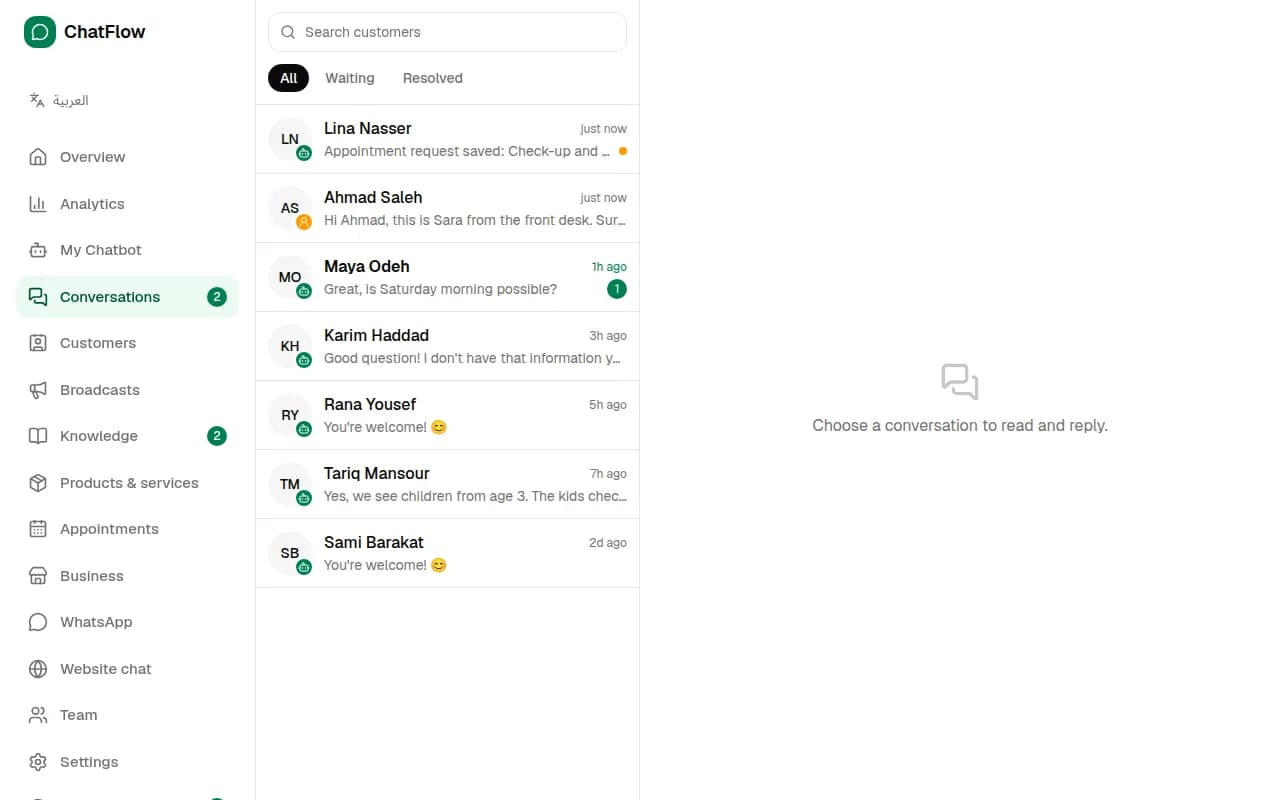
In the menu, choose Conversations. Waiting shows chats where the customer is waiting for a reply, with a green number for unread messages. A robot badge means the AI is handling the chat; a person badge means your team is.
Step 2
Take over from the AI
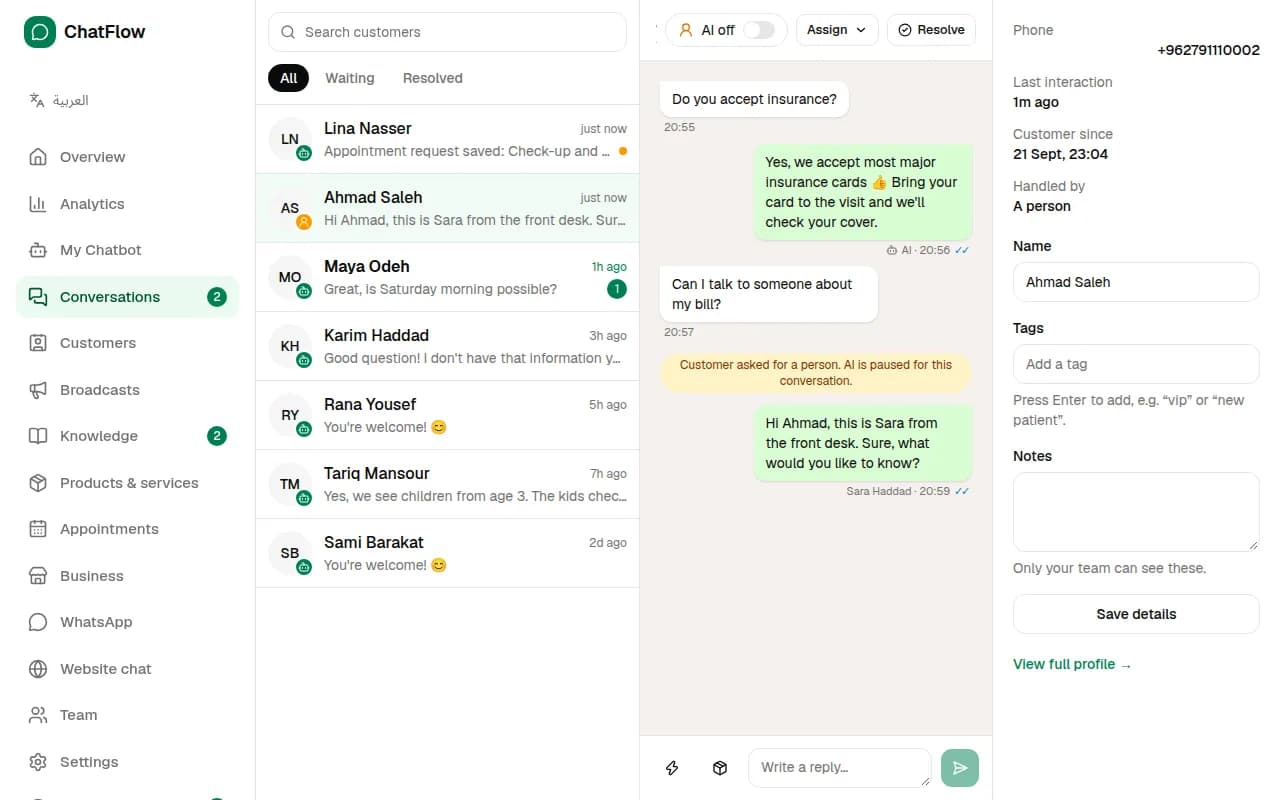
Open a chat and write your reply. Replying yourself turns off AI for that chat so it doesn't talk over you. Use the AI switch at the top to turn it back on. When a customer asks for a person, the AI pauses by itself and you get an alert.
Step 3
Use quick replies
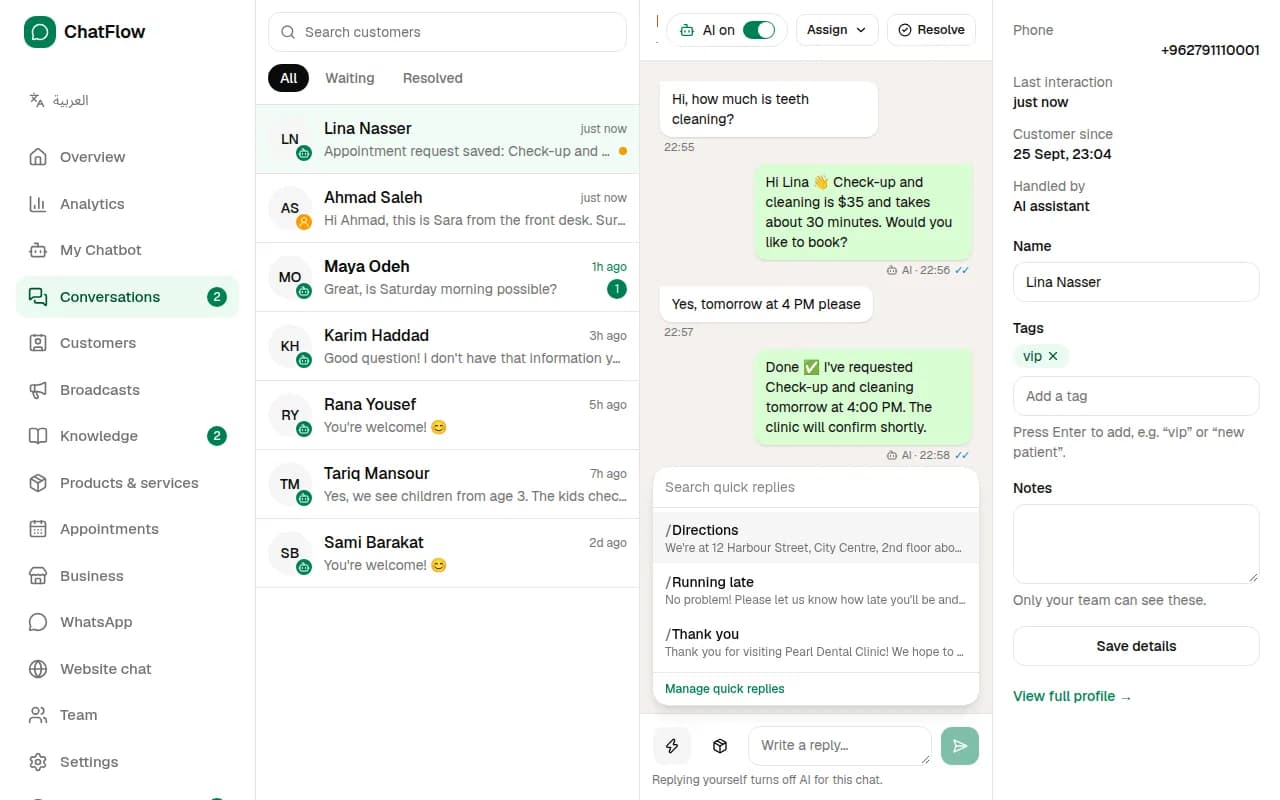
Choose the lightning button, or type /, to insert a saved answer such as directions or opening hours. Choose Manage quick replies to add your own.
Step 4
Keep customer details
On the right, edit the customer's name, add tags such as "vip" and write notes only your team can see, then choose Save details. Use Assign to give the chat to a team member.
Step 5
Resolve when you're done
Choose Resolve to move the chat out of the way. If the customer writes again, it comes back automatically.
Still stuck?
Open a ticket from Support in your dashboard, or write to us. We usually reply within one working day.
Ready to try it?
Create your AI WhatsApp chatbot in minutes. Free plan, no credit card.
Try Chatbot Free