Teach your chatbot: knowledge, products and services
· 7 steps · 5 min read
Your chatbot only answers from what you give it, and it never makes things up. This is where you add that information and keep it up to date.
Step 1
Open Knowledge
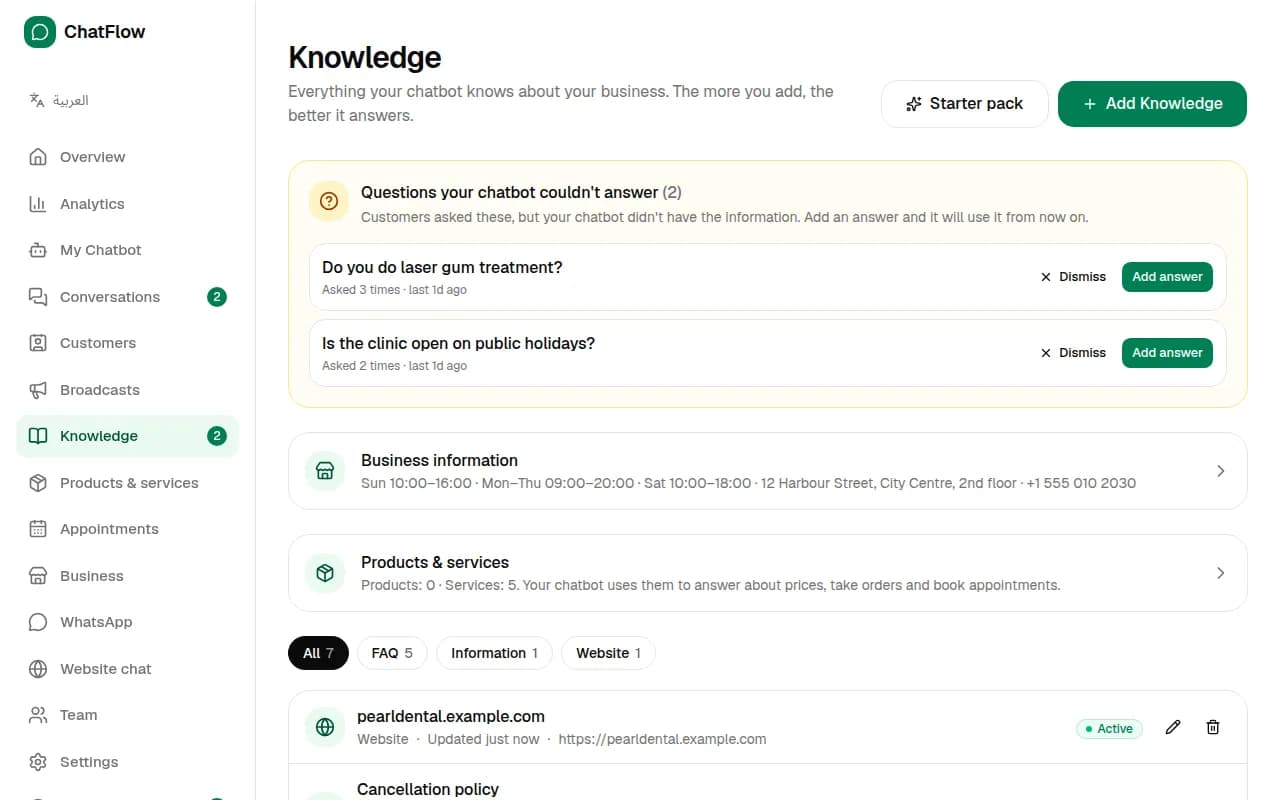
In the menu, choose Knowledge. You'll see everything your chatbot knows: your business information, products and services, and every question, text, web page and document you added. Use the tabs to filter, the pencil to edit and the bin to delete.
Step 2
Add knowledge
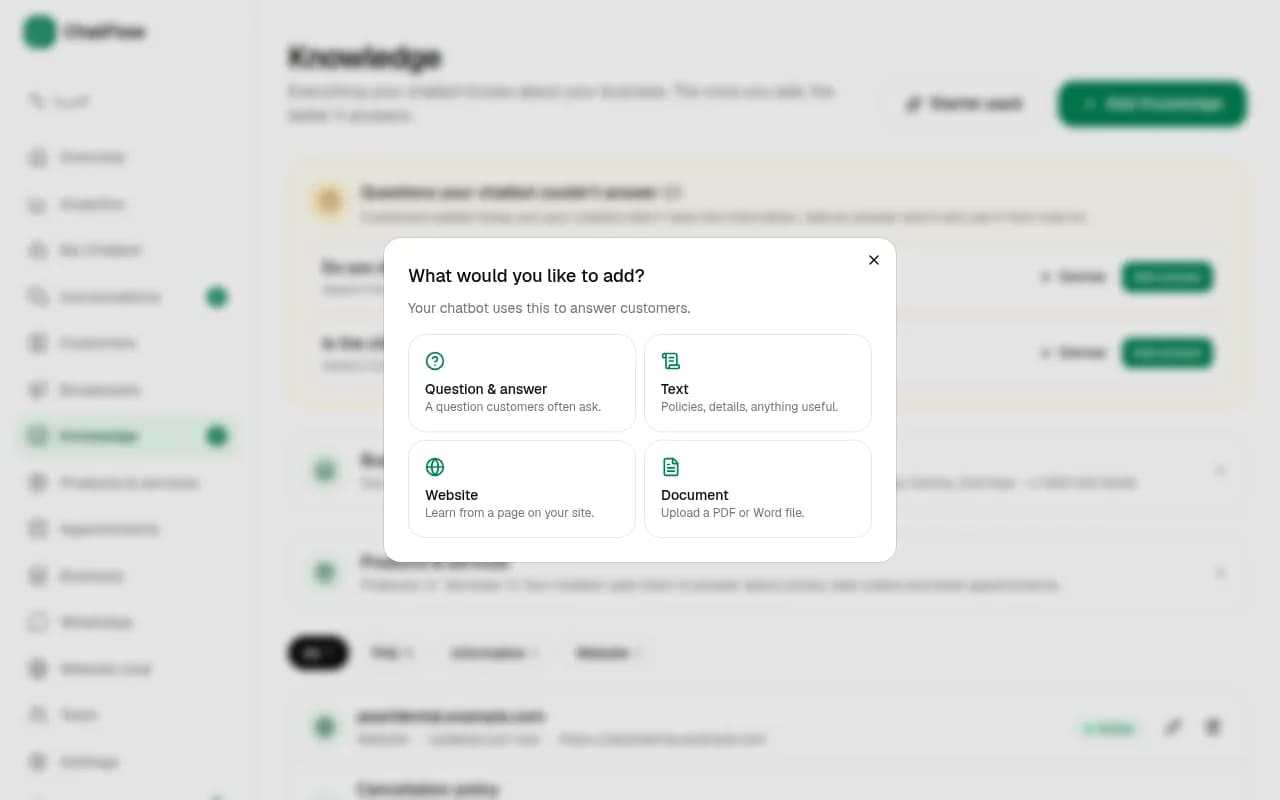
Choose Add Knowledge and pick what to add:
- Question & answer: a question customers often ask, with your answer.
- Text: policies, details, anything useful, such as your cancellation policy.
- Website: a page of your site. The chatbot reads it and learns from it.
- Document: a PDF or Word file, such as a price list or a menu.
Step 3
Start faster with a starter pack
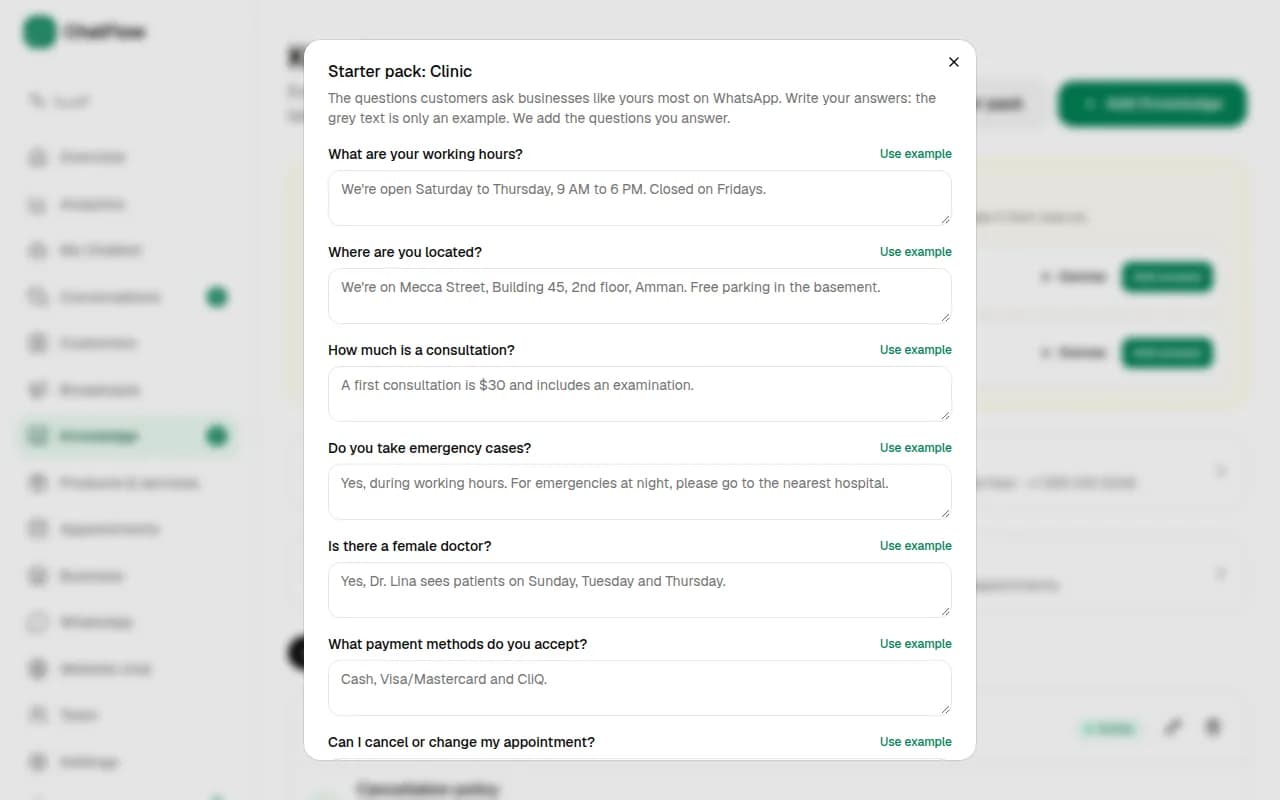
Choose Starter pack for ready-made questions and services for your type of business. Tick the ones that fit, edit the answers to match how you work, and add them in one go.
Step 4
Answer what your chatbot couldn't
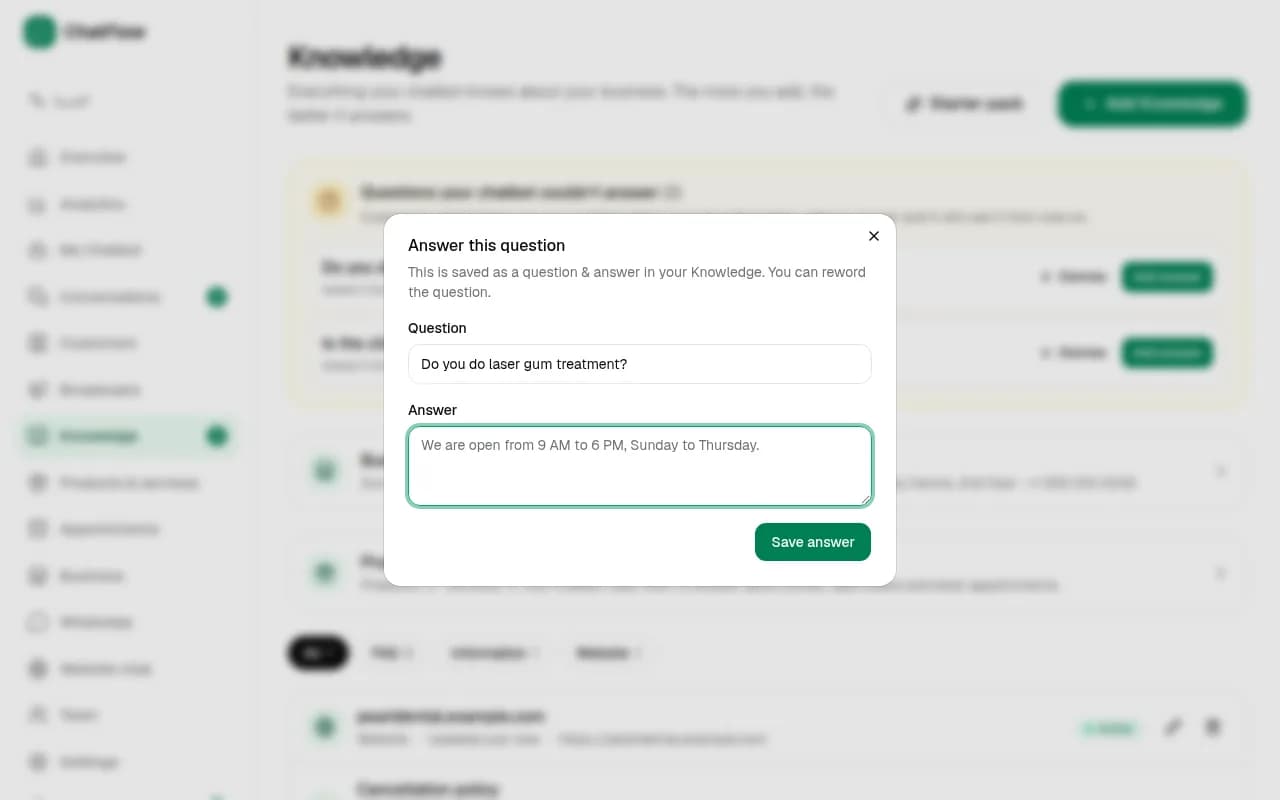
When customers ask something your chatbot doesn't know, the question appears at the top of Knowledge with how many times it was asked. Choose Add answer and write the reply once: from then on, the chatbot uses it. Choose Dismiss for questions you don't want to answer.
Step 5
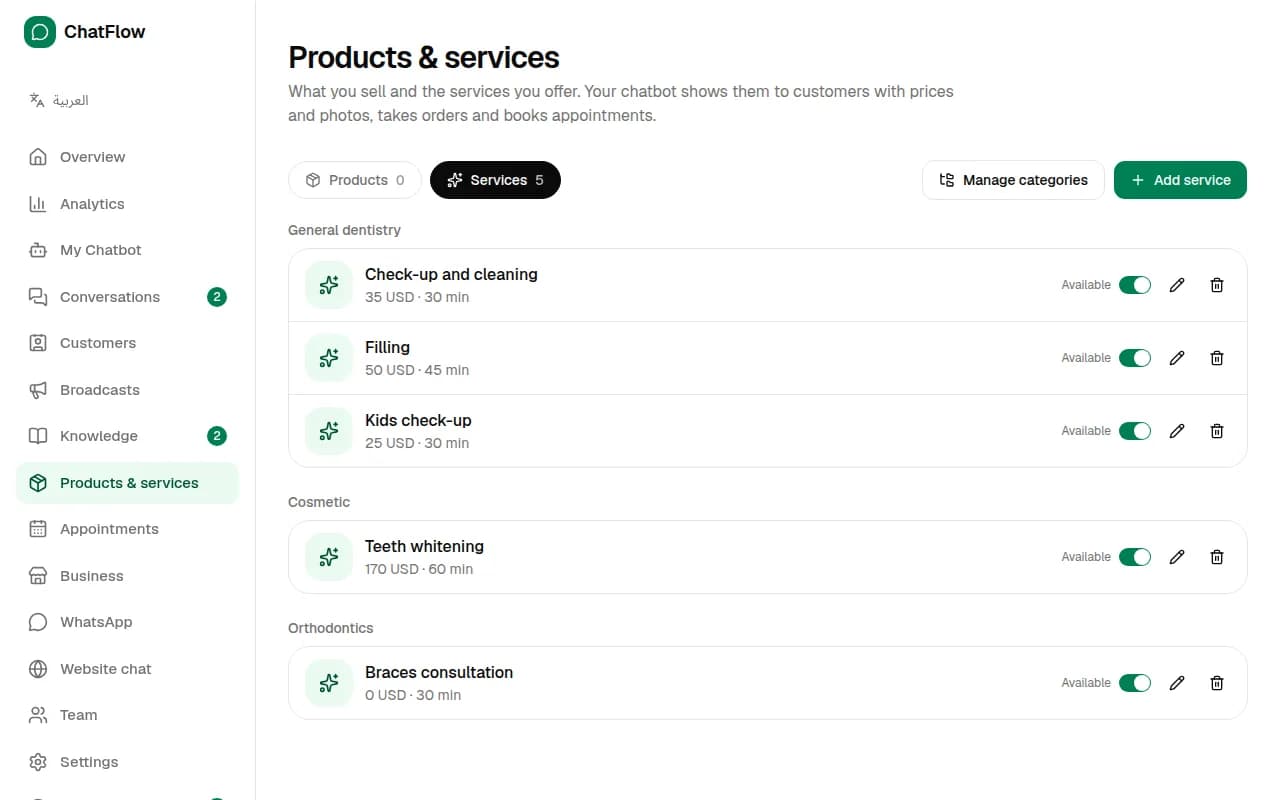
Add your products and services
In Products & services, add what you sell with its price, description, photo and category. Services can also have a duration, which is used for booking. The chatbot shares prices from here, takes orders and books appointments.
Step 6
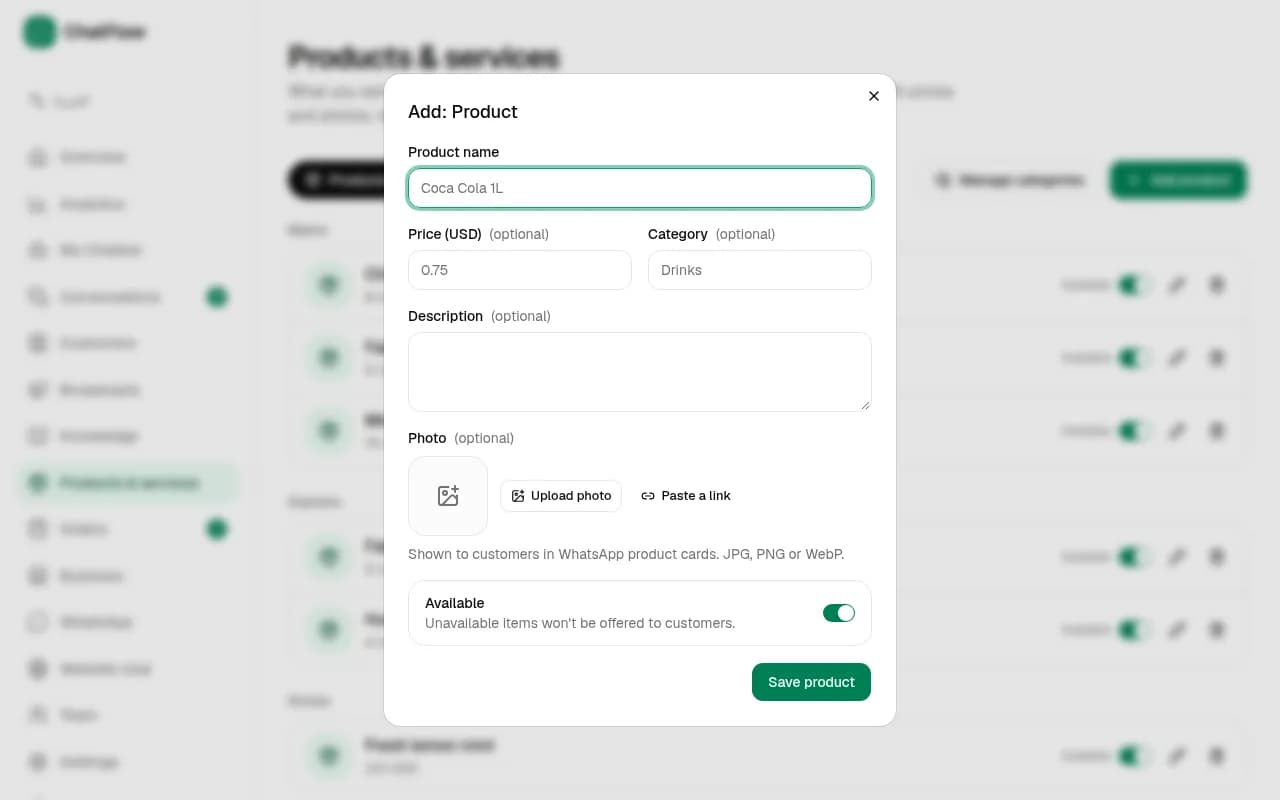
Adding a product
Choose Add product (or Add service), fill in the name and price, and optionally a description, a photo and a category. When something runs out, mark it as sold out and the chatbot will say so.
Step 7
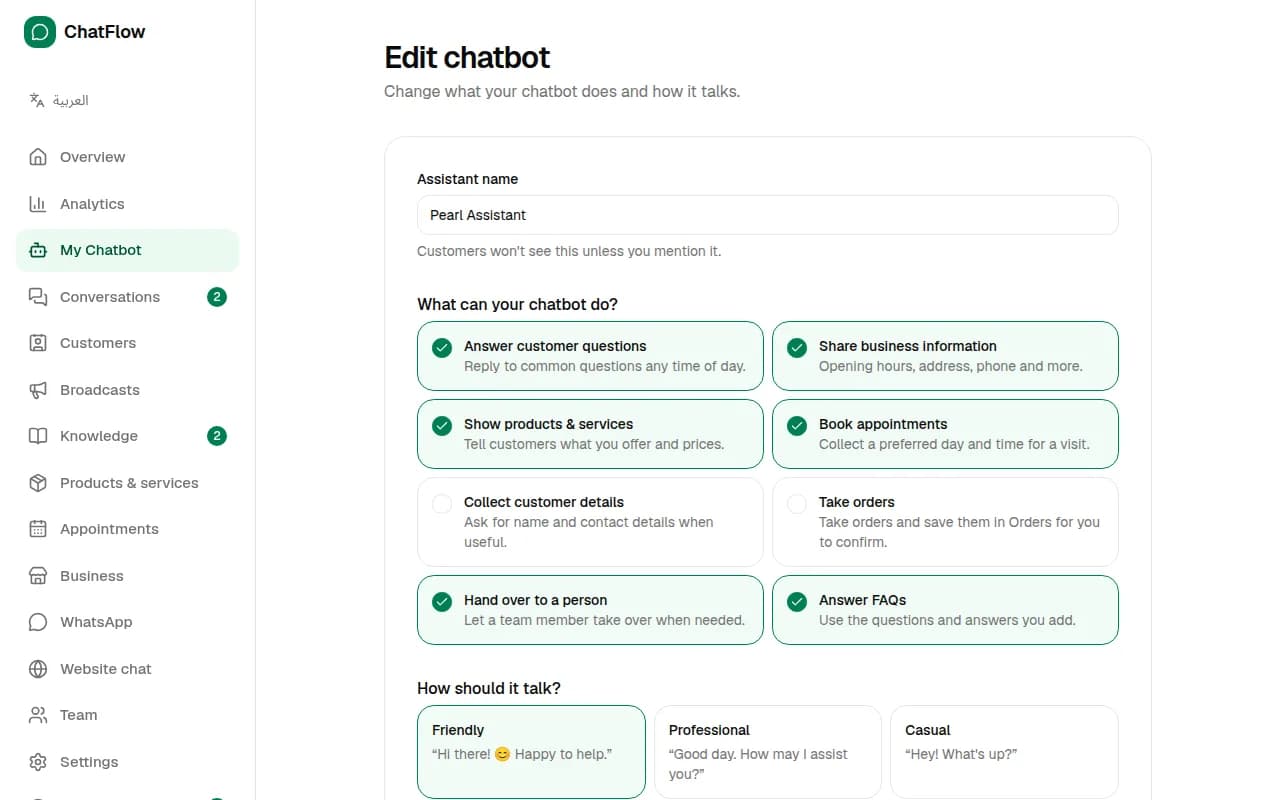
Change how your chatbot behaves
In My Chatbot → Edit, change what it can do and how it talks. Under More options you can give it extra instructions (for example "Always suggest booking a free consultation") and set the greeting message new customers get first.
Still stuck?
Open a ticket from Support in your dashboard, or write to us. We usually reply within one working day.
Ready to try it?
Create your AI WhatsApp chatbot in minutes. Free plan, no credit card.
Try Chatbot Free