Get started: create your chatbot in minutes
· 7 steps · 5 min read
Setting up takes about five minutes. A short wizard walks you through six steps, and you can change everything later from the dashboard.
Step 1
Create your account
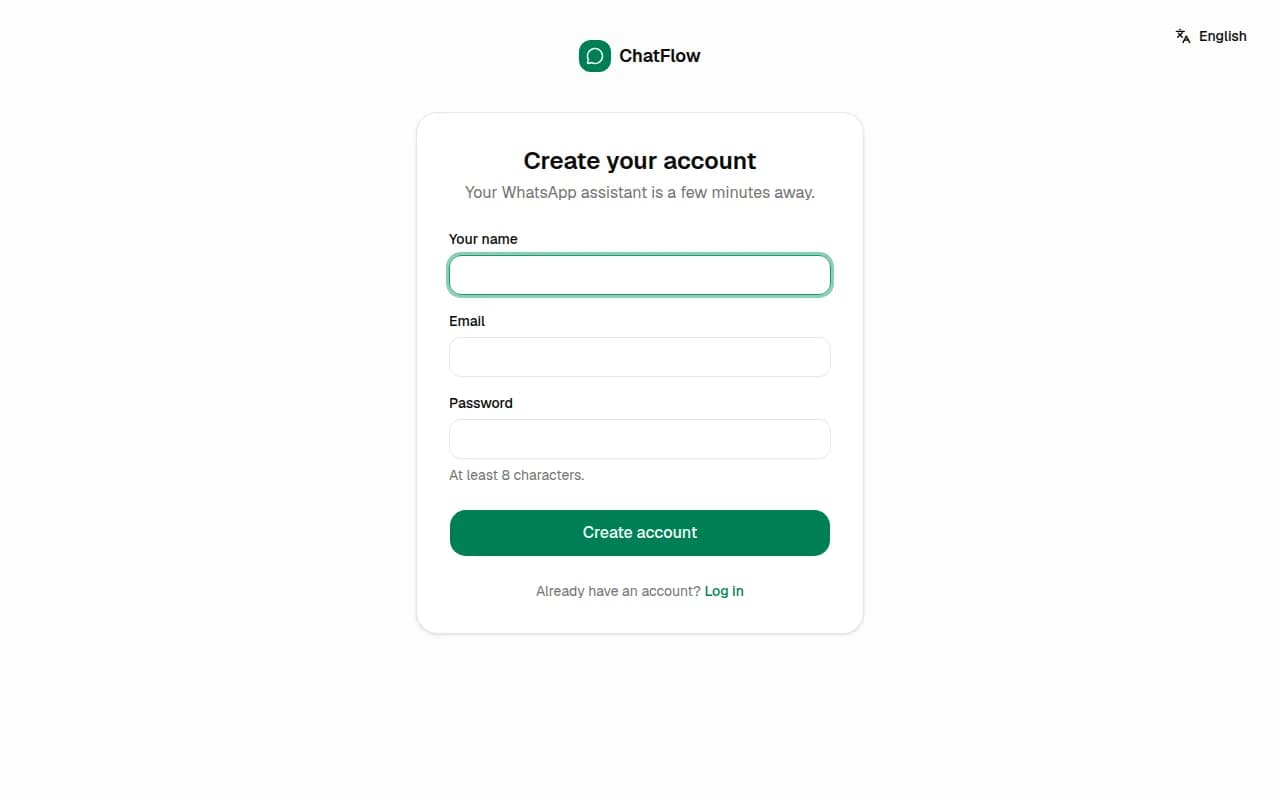
Go to chatflow-ai.com and choose Try Chatbot Free. Sign up with Google or Facebook, or with your name, email and a password. If you use email, click the link we send you to confirm your address.
Step 2
Tell us about your business
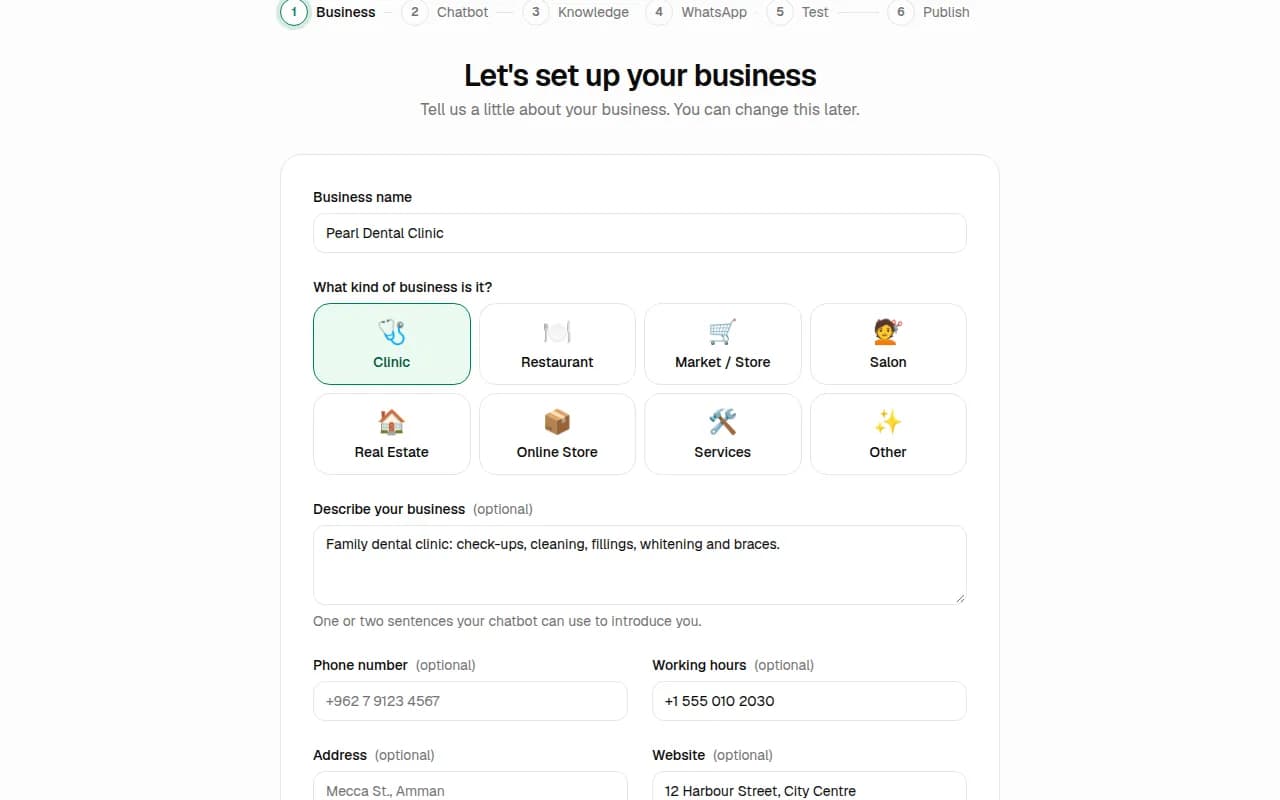
Enter your business name and pick the kind of business. Add a short description, phone, address and website if you like. Turn on Set opening hours so the chatbot knows when you're open, replies after hours and only offers booking times when you work. Then choose Continue.
Step 3
Choose what your chatbot does
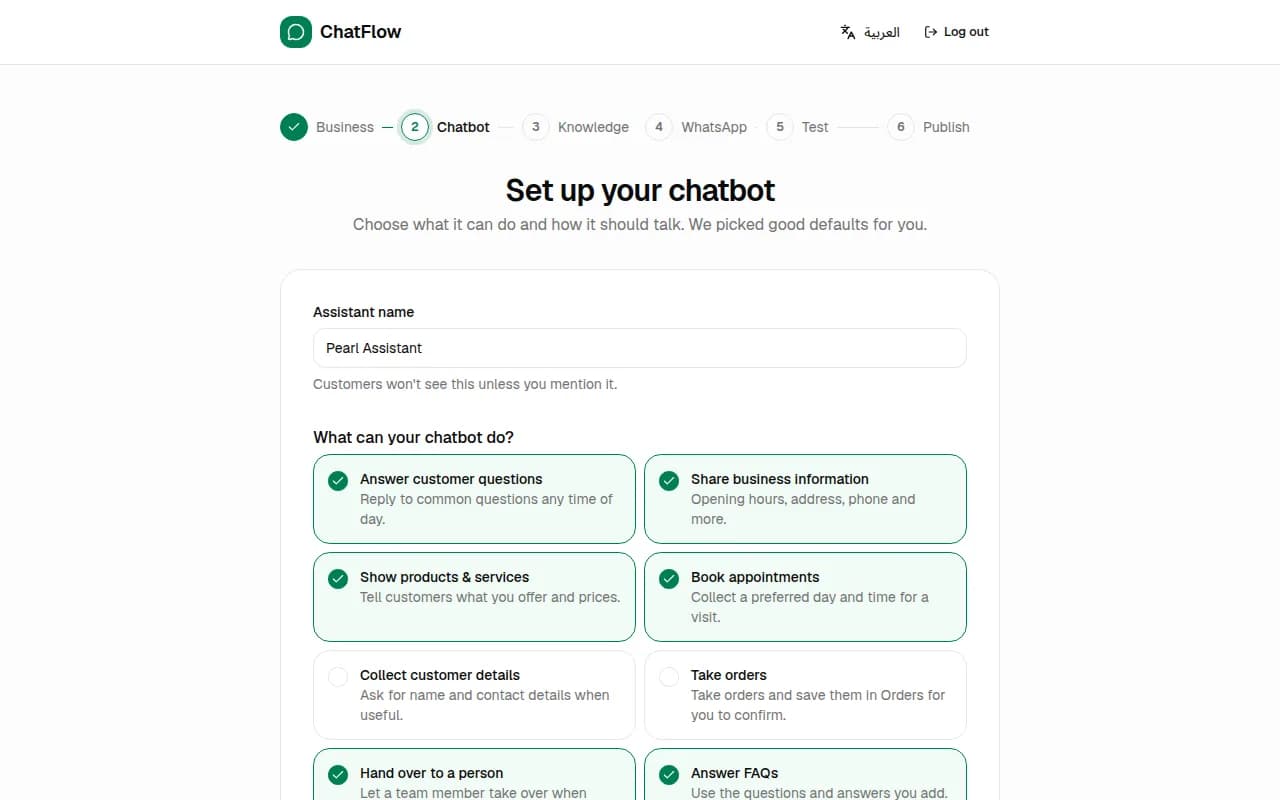
Tick what the assistant should do, for example answer questions, share your products and services, book appointments, take orders or hand the chat to a person. Pick how it should talk: Friendly, Professional or Casual. We pick good defaults for your type of business.
Step 4
Teach your chatbot
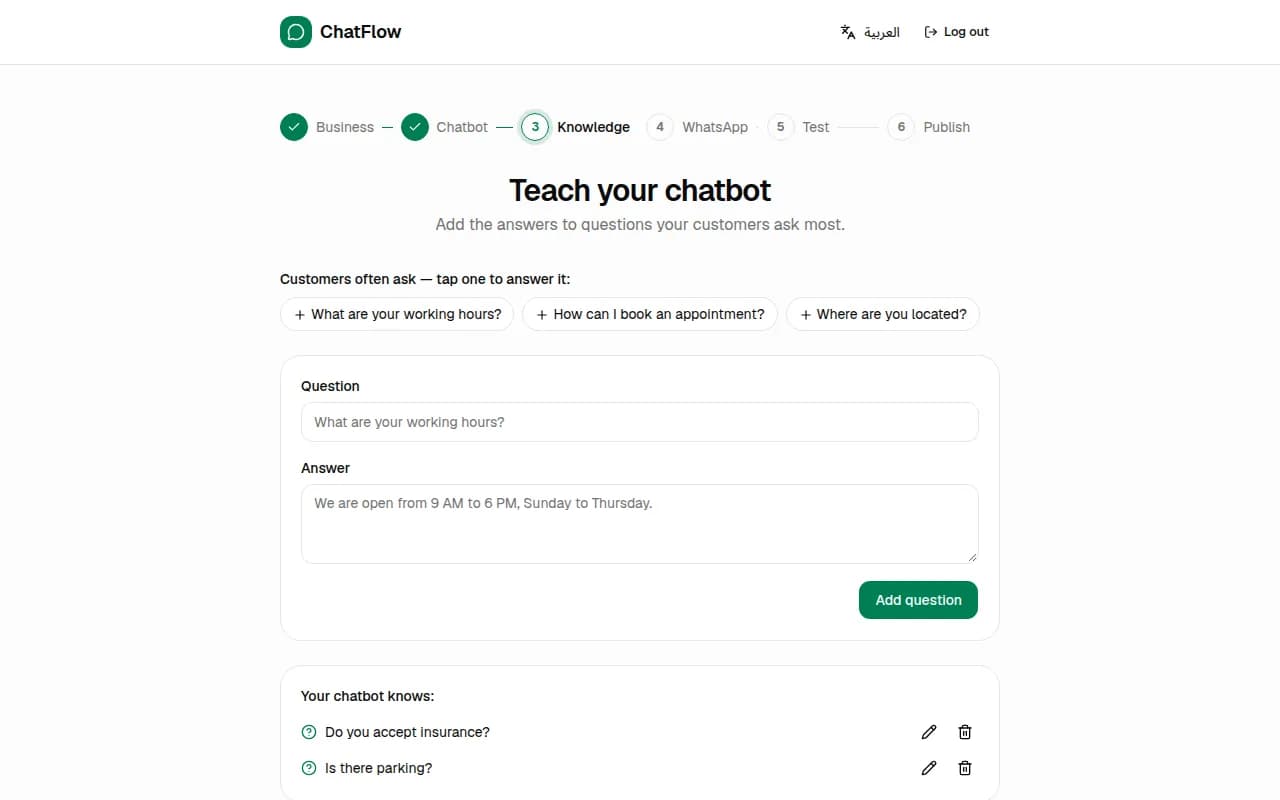
Tap one of the common questions to answer it, or write your own question and answer and choose Add question. Add your products or services with prices so the chatbot can quote them. You can add more later, including text, a web page or a PDF.
Step 5
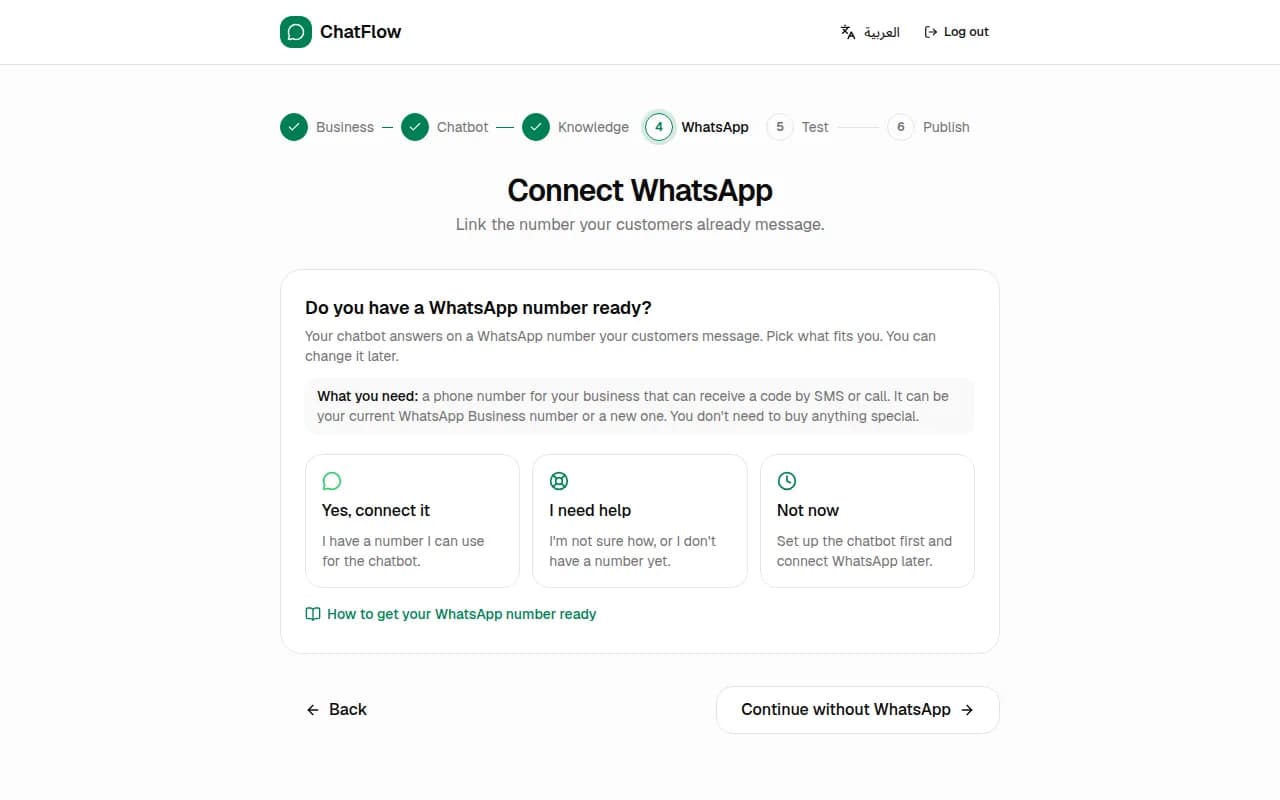
Connect WhatsApp (or do it later)
If your WhatsApp number is ready, connect it now. If not, choose Not now: your chatbot still works in your website chat, and you can connect WhatsApp any time. See Connect your WhatsApp number for the details.
Step 6
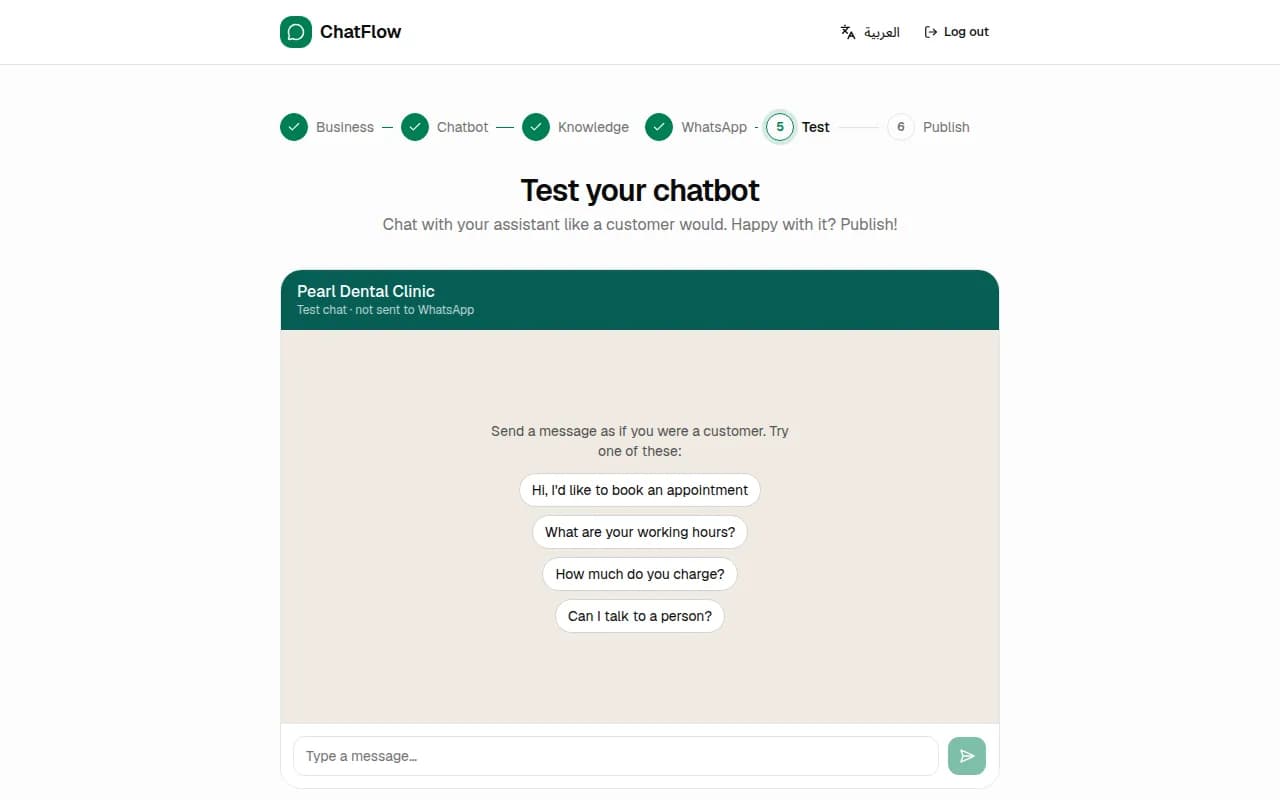
Test it, then publish
Chat with your assistant the way a customer would. The test chat isn't sent to WhatsApp. When you're happy with the answers, choose Publish Chatbot.
Step 7
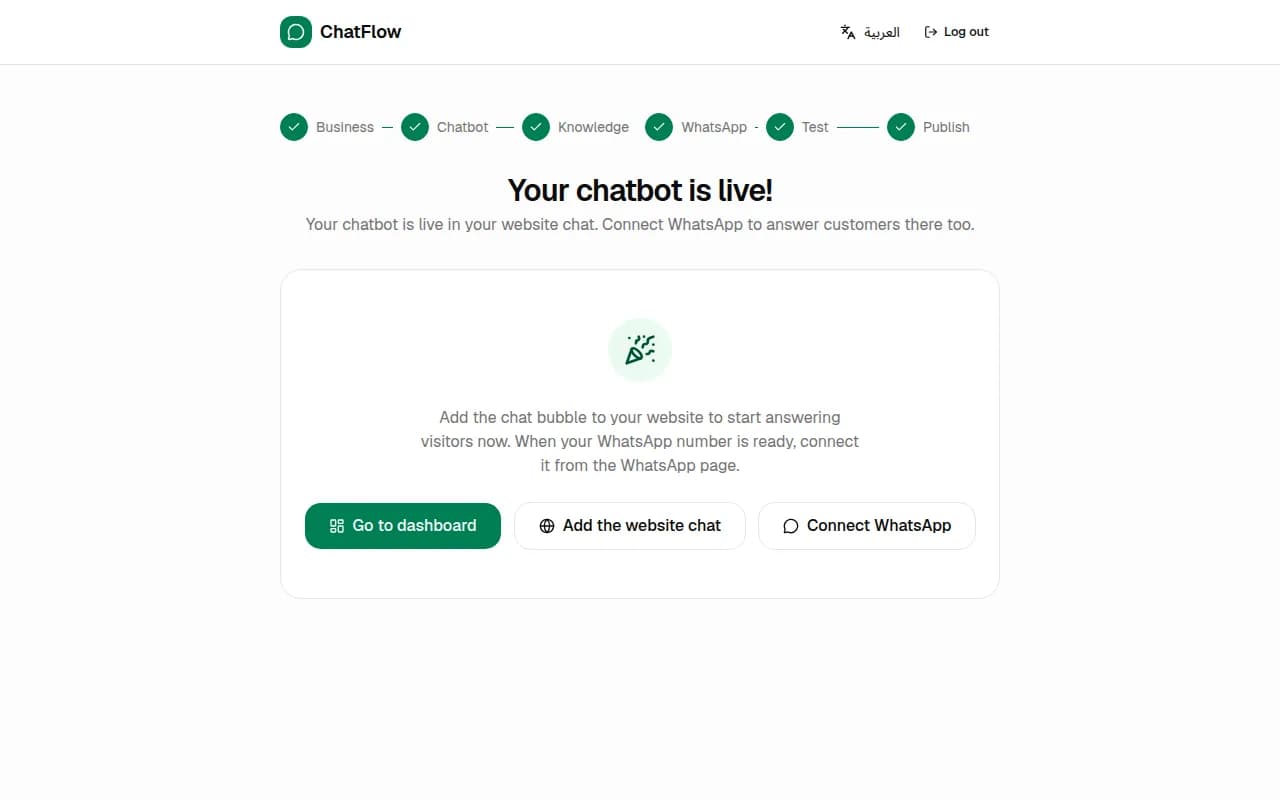
You're live
Your chatbot now answers customers. From here you can go to your dashboard, add the chat bubble to your website or connect WhatsApp.
Still stuck?
Open a ticket from Support in your dashboard, or write to us. We usually reply within one working day.
Ready to try it?
Create your AI WhatsApp chatbot in minutes. Free plan, no credit card.
Try Chatbot Free